Delete an Analysis
Remove an analysis that is no longer needed.
Access requirements
Permission with these capabilities: Create Captures & Analyses
Reach out to your administrator for access.
Note:
- Deleted analyses cannot be recovered.
- You can only delete analyses that you own.
- Delivery schedules for the analysis will also be deleted.
-
On the navigation bar, click Analyses
 .
. -
Do one of the following:
Option
Do this
From the Analyses List
Select an analysis from the list and click Delete.
In the Analysis
Open an analysis, click the More items button
 in the upper-right corner, and click Delete.
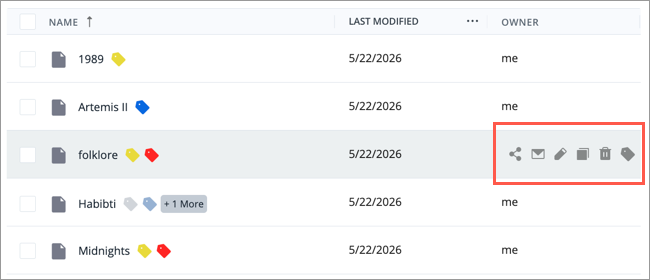
Quick Actions menu
Hover over an analysis to reveal the Quick Actions menu, and then click the Delete button
 .
.
- Click Delete to confirm.
Delete analyses in bulk
-
On the navigation bar, click Analyses
. -
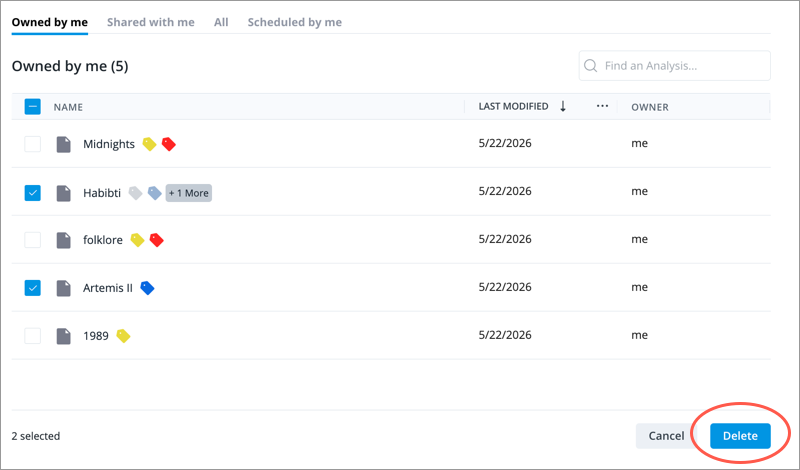
In the Owned by me tab, select analyses from the list.
Note: You can select a maximum of 20 analyses for bulk deletion.
- Click Delete.